laptop-cosmic-pt2
laptop-cosmic-pt2
18:29
so i've been doing alot of configuring since the laptop's come back online, some things broke as indicated in the last post, but i hadn't written anything down yet. here's a list of topics:
- bash
- snapper/btrfs-assistant
- backup-with-pbs-updated(again)
- obsidian-pt2(again)
- bash backup and /builds to git repo for easier install
bash
after getting the browser working, i decided to venture into souping up the bash prompt, as i was working with fish in the garuda install and liked some of extra features. a little internet searching and i was starting to see some great options, and i get to stay in the bash work - shebang!
first things first, the bash prompt is boring. teasing you for more, even the defaults in the .bashrc are underwhelming compared to the fish config. a couple options stood out, starship prompt, ble.sh seemed to cover most of what i wanted with a little tweaking to be done.
so first, i installed starship:
sudo pacman -S starship nerd-fonts
this is in the arch repos so no issues there, everything is controlled from the starship.toml in ~/.config and the webpage has install instructions and some presets that can point you in the right direction. i chose the pure preset which is fairly simple. i highly recommend installing the nerd-fonts package too as seen above as you will then have access to nerd-font symbols and some different fonts if you want it. i added all of them and also set my computer to Firacode which is like an old timer programming /typewriter stlye font.
for starship to work follow the install per your shell, many options even if you use fish or bash, or zsh https://starship.rs/guide/#%F0%9F%9A%80-installation
for bash add the below to the .bashrc file:
eval "$(starship init bash)"
for pure preset you issue the following command at prompt:
starship preset pure-preset -o ~/.config/starship.toml
if that's all you want it's pretty clean and fresh. i also installed ble.sh which gives me autocomplete and history/search functions at the prompt. works incredibly well. here's that process below:
mkdir -p build
cd build
git clone --recursive https://github.com/akinomyoga/ble.sh.git
cd ble.sh
make
then add the source (plugin) to the .bashrc. file:
source out/ble.sh
i then tweaked colors, added a git icon and a buncha aliases for my (sort-of) final .bashrc:
# ~/.bashrc
#

# If not running interactively, don't do anything
[[ $- != *i* ]] && return

##PATH##
# set PATH so it includes user's private ~/.local/bin if it exists
if [ -d "$HOME/.local/bin" ] ; then
    PATH="$HOME/.local/bin:$PATH"
fi

#bash time 24hr clock
alias date="date +'%H:%M:%S'"

#unlimited bash history
HISTSIZE=-1
HISTFILESIZE=-1

#ASCII art and greeting
paleofetch

#plugins
source -- ~/.local/share/blesh/ble.sh
eval "$(starship init bash)"

##Set some $ENVIRONMENTAL variable
export VISUAL=nano
export EDITOR=nano

# Replace ls with exa
alias ls='exa -al --color=always --group-directories-first --icons' # preferred listing
alias la='exa -a --color=always --group-directories-first --icons'  # all files and dirs
alias ll='exa -l --color=always --group-directories-first --icons'  # long format
alias lt='exa -aT --color=always --group-directories-first --icons' # tree listing
alias l.="exa -a | egrep '^\.'"                                     # show only dotfiles

# Common use
alias aup="pamac upgrade --aur"
#alias grubup="sudo update-grub"
#alias fixpacman="sudo rm /var/lib/pacman/db.lck"
alias tarnow='tar -acf '
alias untar='tar -zxvf '
alias wget='wget -c '
alias rmpkg="sudo pacman -Rdd"
#alias psmem='ps auxf | sort -nr -k 4'
#alias psmem10='ps auxf | sort -nr -k 4 | head -10'
#alias upd='sudo reflector --latest 5 --age 2 --fastest 5 --protocol https --sort rate --save /etc/pacman.d/mirrorlist && cat /etc/pacman.d/mirrorlist && sudo pacman -Syu && fish_update_completions && sudo updatedb'
alias ..='cd ..'
alias ...='cd ../..'
alias ....='cd ../../..'
alias .....='cd ../../../..'
alias ......='cd ../../../../..'
alias dir='dir --color=auto'
alias vdir='vdir --color=auto'
alias grep='grep --color=auto'
alias fgrep='fgrep --color=auto'
alias egrep='egrep --color=auto'
alias hw='hwinfo --short'                                   # Hardware Info

# Cleanup orphaned packages
alias cleanup='sudo pacman -Rns (pacman -Qtdq)'

# Get the error messages from journalctl
alias jctl="journalctl -p 3 -xb"

# Recent installed packages
alias rip="expac --timefmt='%Y-%m-%d %T' '%l\t%n %v' | sort | tail -200 | nl"

#personal
alias gitup='~/forge/scripts/forge.update.sh'
alias gitpu='~/forge/scripts/forge.push.sh'
alias up='~/forge/scripts/arch/update.sh'
alias src='source ~/.bashrc'
alias tailup='~/forge/scripts/tailup.sh'
alias taildn='tailscale down'
and my final `~/.config/startship.toml
# "$schema" = 'https://starship.rs/config-schema.json'
# ~/.config/starship.toml
add_newline = true
format = """\
$directory\
$git_branch$git_commit$git_state $git_status\
$line_break $character
"""
right_format = """
$status"""
continuation_prompt = '▶▶ '
# style_choices:
# bold
# italic
# underline
# dimmed
# inverted
# blink
# hidden
# strikethrough
# bg:<color>
# fg:<color>
# <color>
# none
#NOTE: you can customize the symbols, e.g:
[character]
success_symbol = "[ ]($bold fg:bright-blue)"
error_symbol = "[ ]($bold fg:bright-red)"
[directory]
disabled = false
format = " [$path](bold $style)"
style = "cyan"
truncate_to_repo = false
#home_symbol = ""
[hostname]
ssh_only = false
format = '(white bold)[$hostname](#50fa7b bold)'
disabled = false
#[username]
#format = '(white bold)[$username @ ](#50fa7b bold)'
#disabled= false
[git_branch]
format = " [ $branch]($style)"
style = "red"
[git_status]
ahead = '⇡${count}'
behind = '⇣${count}'
diverged = '⇕⇡${ahead_count}⇣${behind_count}'
format = '[[( $all_status$ahead_behind )](fg:yellow)]($style)'
style = "bg:bright-yellow"
[time]
disabled = false
format = '[[ $time ](fg:#a0a9cb )]($style)'
time_format = "%R" # Hour:Minute Format
[python]
format = "[${symbol}(${virtualenv}) ${version}]($style)"
style = "bold bright-yellow"
symbol = "[ ](bold bright-blue)"
version_format = "${raw}"
there's alot to play with here, but here's my prompt with the terminal called:
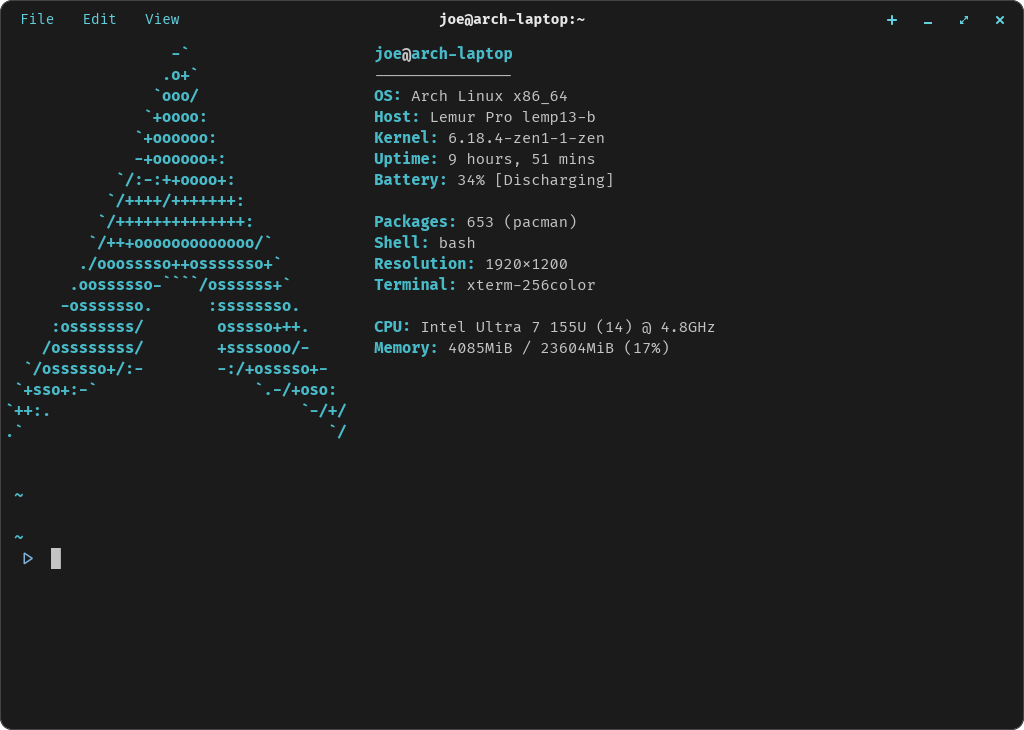
i also installed paleofetch and added that to the $PATH and .bashrc in place of the depricated neofetch following directions at
https://github.com/ss7m/paleofetch.git
snapper and btrfs-assistant
this is obviously only applicable to those using btrfs, which i recomend for this purpose.
install snapper, snap-pac and btrfs-assistant:
sudo pacman -S snapper btrfs-assistant
we will install snap-pac after setting up the root and home configs:
sudo snapper -c root create-config /
sudo snapper -c home create-config /home
this is assuming you have a /home partition thats on separate media, which i do and highly recommend, otherwise, the root partition could do it all in that scenario. or you could run:
sudo btrfs subvolume create /home
the idea being that you can setup different config and thus backup schedules for /home or /, the /home partition does not need regular backups. however, root benefits from many per day, or per hour, or per pacman install if you add the below command. if you have a desktop, install use btrfs-assistant and tweak the snapshot and retention policies for the config(s) you have, then install the below:
sudo pacman -S snap-pac
after creation and setup of the root and home configs, now on execution of the pacman routine, you will see a snapshot happens both before and after the install.
caveats: I am running system-d boot and as of right now, it doesn't allow snapshots in the menu, at least easily. will work fine with grub. this means that if you absolutely hose your system, you will at least need a prompt to get back in and restore a previous snapshot - just FYI
backing up bash, installing cronie and git-submodules
i am trying to make it so all my important data and work is stored locally, in a repo i have direct control of, also on codeberg for the 3x backup method.
this means writing little scripts with nano editor and executing them on a schedule. the systemd method i find a little cumbersome, its probably more robust, and secure, but cron does the job and its faster IMHO to create and implement. arch doesn't have cron natively, so install the cronie package:
sudo pacman -S cronie
sudo systemctl start croniie
sudo systemctl enable --now cronie
that is all you need for backend stuff. if you have editors like VIM, you won't need to do much as it will default to open in that app when editing with crontab -e, but if you prefer nano...you need to specify the $VISUAL and $EDITOR variables in your .bashrc. or set them via command line everytime before executing the cron command. this varies as well, shell to shell, but for bash i added the lines below:
##Set some $ENVIRONMENTAL variable
export VISUAL=nano
export EDITOR=nano
this was also above in my .bashrc output, look in there for some extra goodies floating around ;)
anyways, with all that setup, here's my current backup for my user, and i also run another one within the root user.
###[Min][HR][Day][Mth][DOW]###

#run bash backup @ 2am daily
* 2 * * * ~/backup_bash.sh

#run git update 2x daily @3, and @15 hrs
* 3,15 * * * ~/forge/scripts/forge.update.sh
backup_bash.sh is as follows:
#!/bin/bash

#backup bash
cd ~
cp .bashrc ~/forge/scripts/bash/.bashrc.bak
cp .bash_history ~/forge/scripts/bash/.bash_history.bak

#backup starship
cd .config
cp starship.toml ~/forge/scripts/bash/starship.toml.bak

#sync with forgejo
cd ~
~/forge/scripts/forge.update.sh
~/forge/scripts/forge.push.sh

echo "Backup completed - $(date)" >> .bash_bak
i have a little logging going on as well, but this puts all the work i did in bash prompt and my starship setup into my repo for easy retrieval later. now i can copy and stick in any computer for the flow i like.
the ~/forge/scripts/forge.update.sh command also executes the git update on a 2x day schedule, here's that executable:
#!/bin/bash

# Change to the gitea directory
cd ~/forge

# Loop through all directories and subdirectories
for dir in */; do
    # Check if it's a directory
    if [ -d "$dir" ]; then
        # If so, navigate into it and update the repository
        cd $dir && echo "Moving into $dir" && git pull
        # Navigate back to the parent directory
        cd ..
    fi
done

cd ~
i also have an alias setup in .bashrc. if you look closely, i use gitup to do the same and execute the above simply anywhere in my /dir to update all my repos.
last but not least, i wanted to backup my /build directory to my ~/forge/scripts directory and had some errors when doing that. since they are all pulled off github, you will throw an error saying that direct copy will not find the source. simple solution, just use the git submodule command. it will then sync those to the latest updated repo version anytime you git clone your repo into a new system. a little bit extra work, but its nice to know if i rebuild that system, i can have the updated repo already. i may write a script to help with that so its a little simpler, but that's plenty for now.